
Introduction

Use templates to create professional videos with consistent branding. Choose from JoggAI’s template library or create custom templates with your own layout and design. Templates allow you to generate multiple videos quickly by simply changing variable values.

Key Features

Fast Creation

Skip the design process with ready-made templates

Brand Consistency

Maintain consistent style across all videos

Batch Processing

Generate multiple videos with the same template

Flexible Variables

Customize text, images, videos, and scripts

Workflow Overview

Template video creation is a 4-step process:
1

Create Template (One-time)

Design your template in the dashboard and define variables
2

Select Template

Browse and choose a template from your library
3

Customize Variables

Provide values for template variables (text, images, etc.)
4

Generate & Retrieve

Video renders in background, retrieve when complete
Template videos typically take 2-5 minutes to generate. Use webhooks for best experience.

Creating Templates

Before using templates, you need to create your own templates. Templates allow you to define a fixed layout with replaceable variables for text, images, videos, scripts, and avatars.

Step 1: Create Template in Dashboard

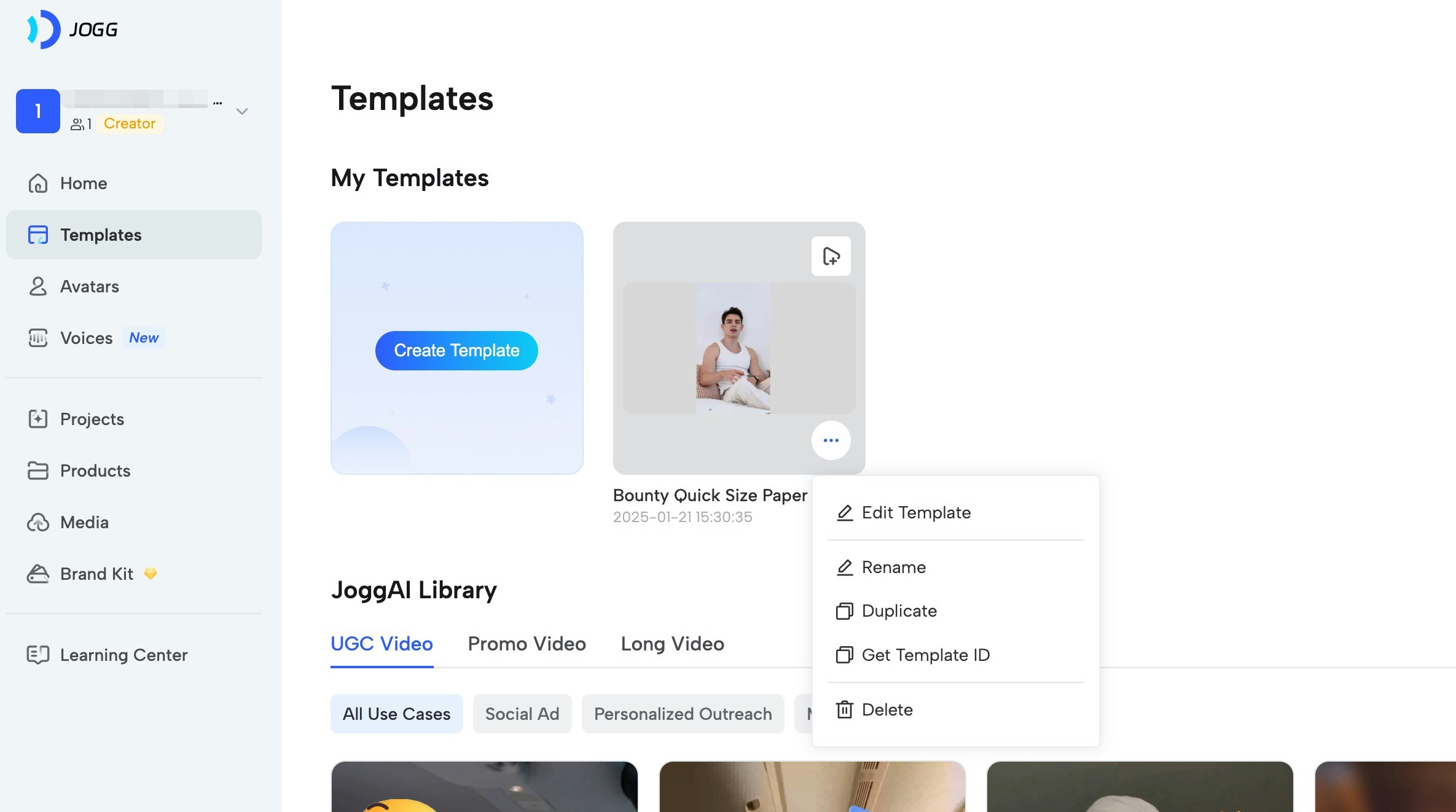
Create your own templates in the user interface. There are two types of templates: public library templates and custom templates created by you. To create a template:
  1. Log in to app.jogg.ai and navigate to the Template Library section
  2. Click “Create Template” and design your video layout
  3. Once created, copy the template_id from the template card
Templates can be created in the dashboard interface. You can design the layout, animations, background music, and define variables for customization.

Step 2: Define Variables in Template

In the template editor, define variables for elements you want to make replaceable: Supported Variable Types:
  • Text: Static text elements (titles, descriptions, labels)
  • Image: Image placeholders (product photos, logos, backgrounds)
  • Video: Video placeholders (background videos, product demos)
  • Script: Script content for text-to-speech (spoken content)
  • Avatar: Avatar selection (can be overridden per video)
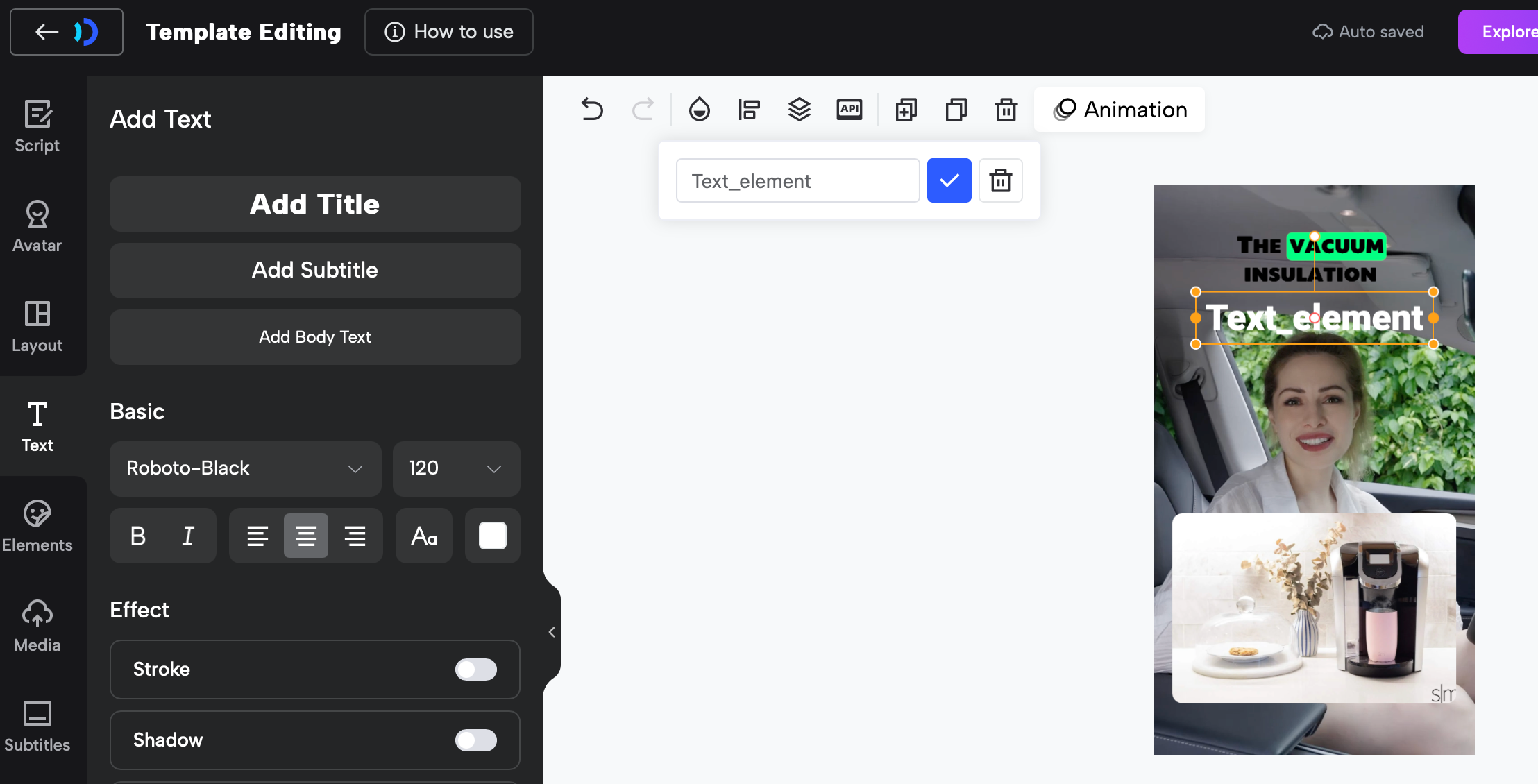
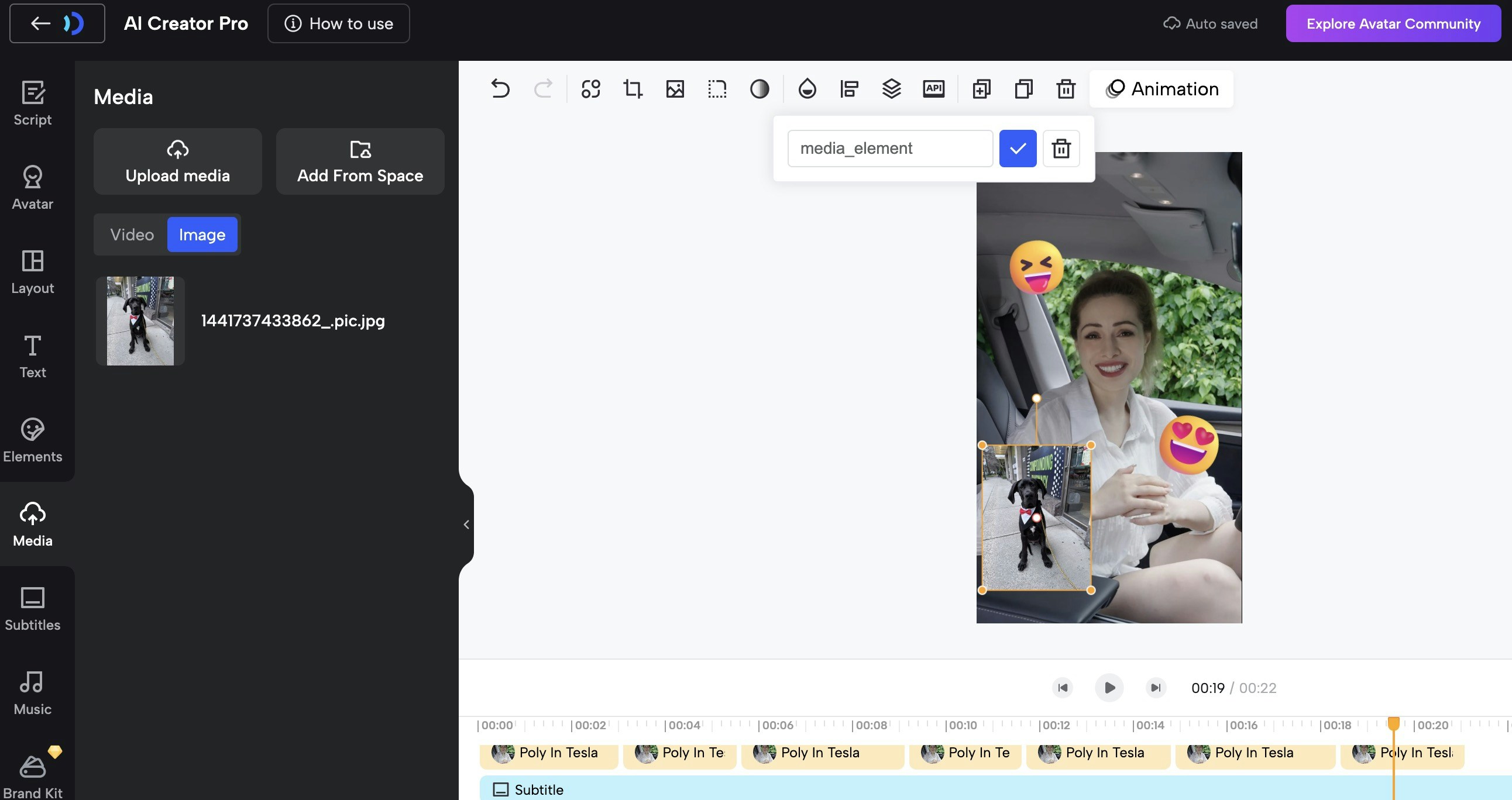
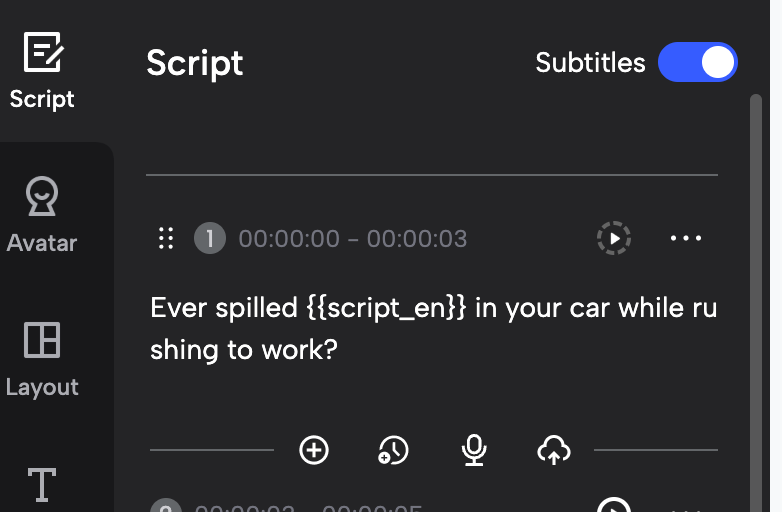
How to Define Variables: In the template editor, you can customize variable names for elements in the template to facilitate identification and replacement. Currently, only script content, text, image, video and avatar are supported.
  1. Select an element in your template (text, image, video, or script)
  2. Click “Set as Variable” or “Define Variable”
  3. Enter a variable name (e.g., product_name, product_image, script_en)
  4. Set the variable type (text, image, video, script, or avatar)
  5. Mark as required or optional
Example: Defining Text Variables Example: Defining Media Variables (Image/Video) Example: Defining Script Variables
Use descriptive variable names that match your content structure. For example: product_name, product_image, script_en, background_video.

Step 3: Get Template Details

After creating your template, you can view all defined variables in the template editor or get them via API. The template details will show all variables you’ve defined, including their names, types, and whether they’re required.
All variables defined in your template will be listed with their names and types. Use these exact variable names when creating videos from the template.

Quick Start

EndpointPurposeDocumentation
GET /v2/templates/customList your custom templatesAPI Reference
GET /v2/template/custom/{id}Get template detailsAPI Reference
POST /v2/create_video_with_templateCreate video from templateAPI Reference
GET /v2/template_video/{video_id}Check video statusAPI Reference

Key Parameters

ParameterTypeRequiredDescription
template_idintegerTemplate ID from template list
variablesarrayTemplate variables array (see Variable Types below)
avatar_idintegerOverride template avatar
avatar_typeinteger0=Public, 1=Custom
voice_languagestringVoice language for text-to-speech
voice_idstringOverride template voice ID
video_namestringCustom name for the video
captions_enabledbooleanEnable subtitles (default: false)
webhook_urlstringWebhook URL for status notifications
Variables Required: All required variables from the template must be provided in the variables array. Get template details first to see required variables.

Code Examples

Step 1: Get Template List

Browse your custom templates:
curl --request GET \
  --url 'https://api.jogg.ai/v2/templates/custom?aspect_ratio=portrait' \
  --header 'x-api-key: YOUR_API_KEY'
Response:
{
  "code": 0,
  "msg": "Success",
  "data": {
    "templates": [
      {
        "id": 1234,
        "name": "Product Showcase Template",
        "cover_url": "https://res.jogg.ai/templates/cover_1234.jpg",
        "preview_url": "https://res.jogg.ai/templates/preview_1234.mp4",
        "aspect_ratio": 0
      }
    ]
  }
}
Filter by aspect_ratio: portrait (Portrait), landscape (Landscape), square (Square)

Step 2: Get Template Details

View template variables and requirements:
curl --request GET \
  --url 'https://api.jogg.ai/v2/template/custom/1234' \
  --header 'x-api-key: YOUR_API_KEY'
Response:
{
  "code": 0,
  "msg": "Success",
  "data": {
    "id": 1234,
    "name": "Product Showcase Template",
    "aspect_ratio": 0,
    "variables": [
      {
        "name": "product_name",
        "type": "text",
        "required": true
      },
      {
        "name": "product_image",
        "type": "image",
        "required": true
      },
      {
        "name": "script",
        "type": "script",
        "required": true
      }
    ]
  }
}
Check the variables array to see what values you need to provide. Required variables must be included in your request.

Step 3: Create Video with Template

Basic Example: Text Variables
curl --request POST \
  --url 'https://api.jogg.ai/v2/create_video_with_template' \
  --header 'x-api-key: YOUR_API_KEY' \
  --header 'Content-Type: application/json' \
  --data '{
    "template_id": 1234,
    "voice_language": "english",
    "voice_id": "en-US-ChristopherNeural",
    "avatar_id": 81,
    "avatar_type": 0,
    "captions_enabled": true,
    "variables": [
      {
        "type": "text",
        "name": "product_name",
        "properties": {
          "content": "Amazing Smart Watch"
        }
      },
      {
        "type": "script",
        "name": "script",
        "properties": {
          "content": "Discover the future of wearable technology with our Amazing Smart Watch!"
        }
      }
    ]
  }'
Response:
{
  "code": 0,
  "msg": "Success",
  "data": {
    "video_id": "video_123456"
  }
}
Save the video_id to check status later!

Step 4: Check Video Status

Poll to check if video is ready:
curl --request GET \
  --url 'https://api.jogg.ai/v2/template_video/video_123456' \
  --header 'x-api-key: YOUR_API_KEY'
Response (Processing):
{
  "code": 0,
  "msg": "Success",
  "data": {
    "video_id": "video_123456",
    "status": "processing"
  }
}
Response (Completed):
{
  "code": 0,
  "msg": "Success",
  "data": {
    "video_id": "video_123456",
    "status": "completed",
    "video_url": "https://res.jogg.ai/videos/video_123456.mp4",
    "cover_url": "https://res.jogg.ai/covers/cover_123456.jpg",
    "duration": 30,
    "created_at": 1732806631
  }
}
Instead of polling, use [Webhooks](/api-reference/v2/API Documentation/WebhookIntegration) to get notified instantly when videos are ready!

Advanced Examples

Create Video with Image Variables

Include custom images in template:
curl --request POST \
  --url 'https://api.jogg.ai/v2/create_video_with_template' \
  --header 'x-api-key: YOUR_API_KEY' \
  --header 'Content-Type: application/json' \
  --data '{
    "template_id": 1234,
    "voice_language": "english",
    "voice_id": "en-US-ChristopherNeural",
    "avatar_id": 81,
    "avatar_type": 0,
    "variables": [
      {
        "type": "text",
        "name": "product_name",
        "properties": {
          "content": "Amazing Smart Watch"
        }
      },
      {
        "type": "image",
        "name": "product_image",
        "properties": {
          "url": "https://example.com/watch.jpg"
        }
      },
      {
        "type": "script",
        "name": "script",
        "properties": {
          "content": "Check out this amazing smart watch!"
        }
      }
    ]
  }'
Use url for external images or asset_id for uploaded assets.

Create Video with Uploaded Assets

Use previously uploaded assets:
curl --request POST \
  --url 'https://api.jogg.ai/v2/create_video_with_template' \
  --header 'x-api-key: YOUR_API_KEY' \
  --header 'Content-Type: application/json' \
  --data '{
    "template_id": 1234,
    "template_type": "user",
    "voice_language": "english",
    "variables": [
      {
        "type": "image",
        "name": "product_image",
        "properties": {
          "asset_id": 5678
        }
      },
      {
        "type": "video",
        "name": "background_video",
        "properties": {
          "asset_id": 9012
        }
      }
    ]
  }'
Upload assets first using [Upload Media](/api-reference/v2/API Documentation/UploadMedia), then reference by asset_id.

Variable Types Reference

Templates support different variable types. Each variable must include type, name, and properties:

Text Variables

{
  "type": "text",
  "name": "product_name",
  "properties": {
    "content": "Your text here"
  }
}

Image Variables

Use external URL or uploaded asset:
{
  "type": "image",
  "name": "product_image",
  "properties": {
    "url": "https://example.com/image.jpg"
  }
}
OR
{
  "type": "image",
  "name": "product_image",
  "properties": {
    "asset_id": 1234
  }
}

Video Variables

Use external URL or uploaded asset:
{
  "type": "video",
  "name": "background_video",
  "properties": {
    "url": "https://example.com/video.mp4"
  }
}
OR
{
  "type": "video",
  "name": "background_video",
  "properties": {
    "asset_id": 5678
  }
}

Script Variables

{
  "type": "script",
  "name": "script",
  "properties": {
    "content": "Your script text here"
  }
}

Use Case Examples

Create consistent product videos at scale:
  • Use same template for entire catalog
  • Swap product images and names
  • Maintain brand consistency
  • Batch process hundreds of products
Launch coordinated campaigns:
  • Create template matching brand guidelines
  • Generate videos for different products
  • Consistent look across all posts
  • Quick turnaround for trending topics
Showcase properties professionally:
  • Standard template for all listings
  • Swap property images and details
  • Include agent information
  • Generate videos for new listings instantly
Create course materials efficiently:
  • Consistent lesson format
  • Swap topics and examples
  • Professional appearance
  • Scale content production

Tips for Best Results

Template Creation:
  • Design templates with clear, consistent layouts
  • Use descriptive variable names (e.g., product_name not var1)
  • Define all elements you want to customize as variables
  • Test template with sample data before bulk production
  • Keep template design simple for faster rendering
  • Consider aspect ratio requirements (portrait, landscape, square)
Template Selection:
  • Choose templates matching your aspect ratio needs (9:16, 16:9, 1:1)
  • Preview templates before bulk production
  • Test with sample data first
  • Ensure template variables match your data structure
Image Quality:
  • Use high-resolution images (recommended 1920x1080 or higher)
  • Ensure image URLs are publicly accessible (HTTPS)
  • Test images are not corrupted
  • Optimize image file sizes (maximum 10MB)
Variable Configuration:
  • Get template details first to see all required variables
  • Match variable names exactly as defined in the template
  • Use correct variable types (text, image, video, script)
  • Provide all required variables to avoid errors
Batch Processing:
  • Submit all requests first
  • Use [Webhooks](/api-reference/v2/API Documentation/WebhookIntegration) for notifications
  • Implement retry logic for failures
  • Monitor rate limits

Troubleshooting

Error: Template ID does not existSolutions:
  • Verify template_id is correct
  • Verify template_id exists and is accessible
  • List all templates to find correct ID
  • Ensure template exists in your account
Error: Required template variable missingSolutions:
  • Get template details to see required variables
  • Ensure all required variables are in variables array
  • Check variable names match exactly (case-sensitive)
  • Verify variable types are correct
Error: Failed to load asset from URLSolutions:
  • Ensure URLs are publicly accessible
  • Use HTTPS (not HTTP)
  • Check file format is supported
  • Verify file size is within limits
  • Test URL in browser first
Error: Video status is “failed”Solutions:
  • Check error message in response
  • Verify all assets are valid
  • Ensure script length is appropriate
  • Try with simpler variables first
  • Contact support if issue persists